

Version 2.7.17
Sentry Desk is a commercial DoorBird-compatible live intercom console for live video, direct SIP audio, relay unlock, shift takeover, event history, timestamped evidence recording, and Axis network speaker audio.
All screenshots in this manual use synthetic demo camera imagery and demo credentials. Do not include real customer camera or intercom footage in training materials without written authorization.
Editions and Feature Overview
Sentry Desk is available in Demo, Licensed, and Site editions. The feature table below shows which workflows each edition supports.
Feature Split
| Feature | Demo | Licensed | Site |
|---|---|---|---|
| 14-day evaluation | Yes | No | No |
| Live DoorBird video, snapshots, timestamped recordings | Yes | Yes | Yes |
| One-way Listen In without placing a SIP call | Yes | Yes | Yes |
| Direct SIP listener, answer/reject/end, mic mute/unmute | Yes | Yes | Yes |
| DoorBird relay unlock | Yes | Yes | Yes |
| DoorBird SIP setup push and Call to Door | Yes | Yes | Yes |
| Basic latest ring/motion history | Yes | Yes | Yes |
| Extended history gallery and live event monitor | Yes | No | Yes |
| Auto callback from monitor doorbell events | Yes | No | Yes |
| On Duty / Off Duty shift handoff | Yes | No | Yes |
| Custom customer logo | Yes | No | Yes |
| Axis network speaker audio | Yes | No | Yes |
| Future multi-site/business features | Preview | No | Yes |
| Workstation allowance | 1 | 1 | 5 |
| Door allowance | 1 | 1 | 1 |
| Add-on license readiness | Preview | No | Yes |
| Offline signed license validation | Demo | Yes | Yes |
Quick Start
- Open Settings and enter the DoorBird IP/Host, DoorBird username, password, door/location name, operator name, recording stamp address, video mode, relay count, and storage folders. If the DoorBird IP is unknown, click Find DoorBird beside the IP/Host field to scan the local or VPN subnet. Use the View button beside password fields to check for typos.
- Use a DoorBird user with Watch Always, History, Motion, Geofencing, and API Operator permissions.
- Open SIP Audio and confirm SIP user, password, port, auto-answer preference, and audio level sliders.
- For VPN deployments, connect the VPN first, use Find DoorBird to scan the local or VPN subnet, and save the DoorBird address.
- In DoorBird Setup, use DETECT THIS PC IP, confirm it is the VPN adapter IP that DoorBird can reach, then click PUSH SIP SETTINGS. Site edition operators can also click ON DUTY to take over calls, which pushes the current workstation SIP target.
- Use LISTEN IN for one-way monitor audio without placing a SIP call. It closes automatically when an incoming SIP door call arrives.
- Click CALL TO DOOR and answer the incoming call from Live. The desk microphone stays muted until the operator presses TALK.
- Optional enterprise audio: open Axis Speaker, enter or discover the Axis network horn/speaker, test the connection, refresh stored clips, and confirm clip/listen/talk volume. During daily operation, use the Live Axis Loudspeaker section for Axis Listen In, Push to Talk, Play, Speaker Level, and Mic Level without leaving live view.
- Open Registration to copy the Machine ID, request a signed license, or validate a license key.
Registration and Licensing
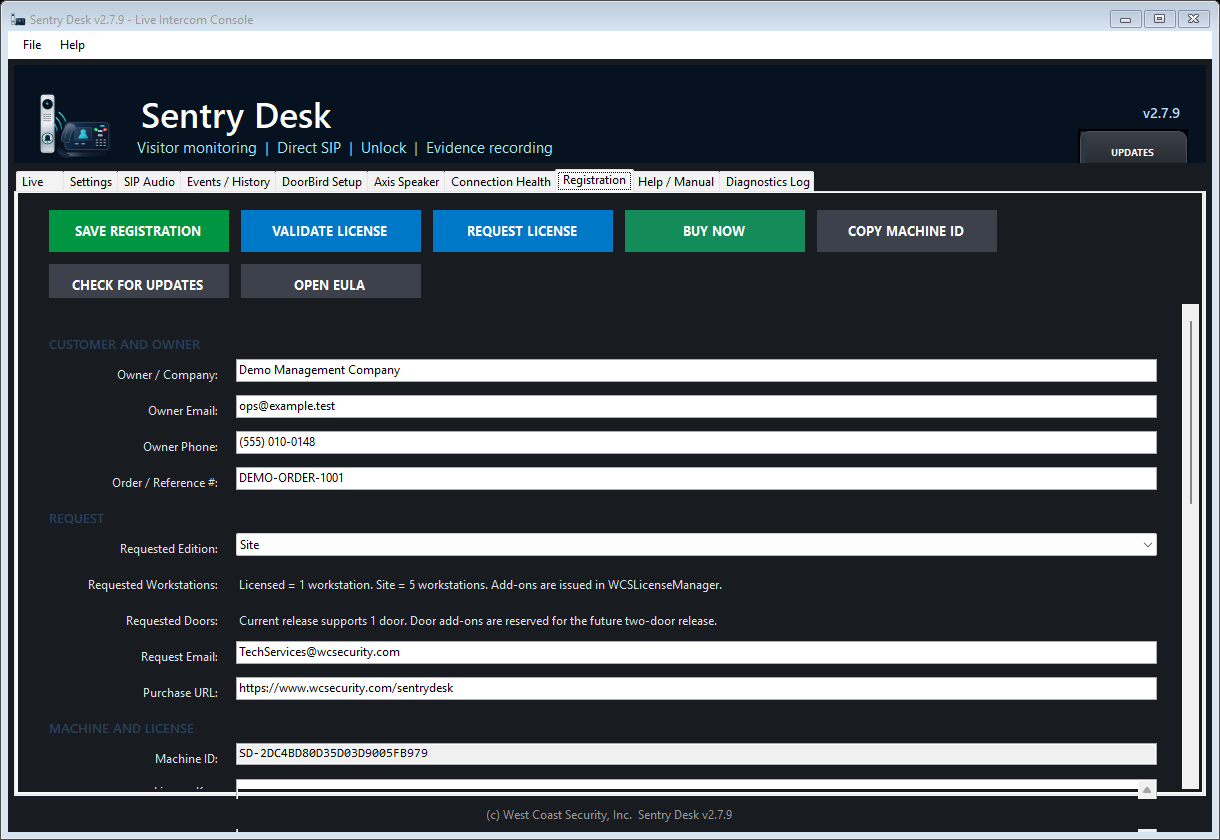
Sentry Desk uses signed offline WCS licenses issued by West Coast Security.
- Product ID:
SentryDesk - Product name:
Sentry Desk - Publisher:
West Coast Security, Inc. - Author:
James Brown - Default license request email:
TechServices@wcsecurity.com
Customers request licenses by emailing the generated license request to TechServices@wcsecurity.com. West Coast Security reviews the request and issues the appropriate signed offline license file. Customers do not need online activation to run a signed offline key.
Only the public verification key is embedded in Sentry Desk. Private signing keys remain under WCS control. Signed WCS-LIC-1 license payloads may include edition, channel, customer, email, issue date, optional expiration/maintenance date, workstation allowance, door allowance, Machine ID list, feature list, and signature.
Supported channels are Beta, Gift, Complimentary, Retail, and Internal.
If the demo expires, protected features are blocked and Sentry Desk shows Buy Now, Request License, Enter License, and Cancel options. Settings, Help, Registration, and the EULA remain available.
Live Workflow
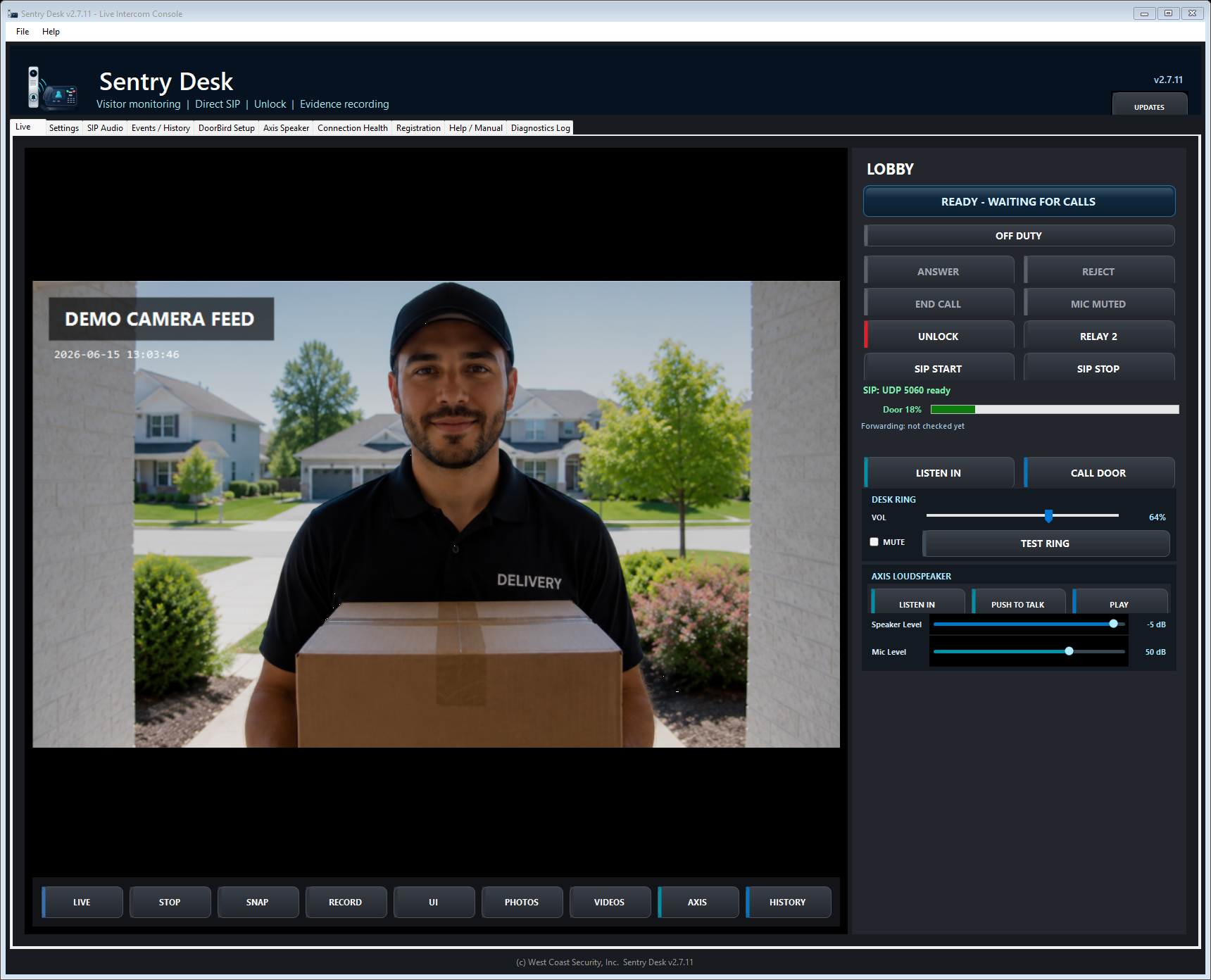
- LIVE / STOP starts or stops the live DoorBird video view. Sentry Desk monitors the VLC live player and restarts it if the DoorBird RTSP/MJPEG stream stops, errors, or sits too long without video progress.
- LISTEN IN starts one-way DoorBird LAN audio without placing a SIP call and without opening the desk microphone. If a visitor presses the DoorBird call button, Sentry Desk drops Listen In when the SIP INVITE arrives so the operator can answer the real call.
- SNAP saves a still image to the configured snapshot folder.
- RECORD uses the selected recording mode. High Quality is recommended for normal widescreen video; Stamped Evidence burns visible date/time and site details into the video.
- UI opens DoorBird's local HTML5 viewer.
- PHOTOS opens local snapshots. VIDEOS offers Play Latest in VLC and Open Recordings Folder. AXIS opens live-view Axis speaker actions for clip playback, ordered clip sequences, Axis mic listen, Axis mic recording, clip stop, clip refresh, and Axis Speaker setup.
- The DoorBird intercom row contains LISTEN IN and CALL DOOR.
- DESK RING controls only the local PC ring alert.
- Axis Loudspeaker contains LISTEN IN, PUSH TO TALK, PLAY, Speaker Level, and Mic Level for the configured Axis speaker. Axis Listen In changes to STOP LISTENING while the Axis microphone stream is active.
- HISTORY opens Events / History and refreshes the latest ring and motion images.
- The LCD readiness display shows ready, ringing, connected, recovery, and off-duty states in a high-visibility operator panel.
- Ring volume, Ring mute, and Test Ring are on the Live screen for daily operator adjustment. These controls affect the local desk ring alert only; SIP speaker/microphone devices remain on the SIP Audio page.
- Detailed DoorBird API/login readiness, routed/VPN reachability, local SIP IP, UDP listener state, DoorBird forwarding, and door audio checks are available from Connection Health so the daily dashboard stays clean.
- ON DUTY / OFF DUTY is a Site feature for shift handoff.
- Forwarding shows whether DoorBird is currently routing SIP calls to this PC or another station. With v2.6.12 or newer stations, it also shows the active operator and Windows computer name. Version 2.6.16 and newer use compact stacked lines so longer operator and computer names are easier to read.
- CALL TO DOOR asks DoorBird to call this workstation immediately. The desk microphone stays muted until the operator presses TALK.
- ANSWER / REJECT / END CALL manage incoming SIP calls.
- MIC MUTED / UNMUTE MIC / MUTE MIC controls whether the door station can hear the operator. Echo-safe desks answer listen-first by default; CALL TO DOOR also starts listen-first for privacy.
- UNLOCK / RELAY 2 trigger DoorBird relays.
Settings
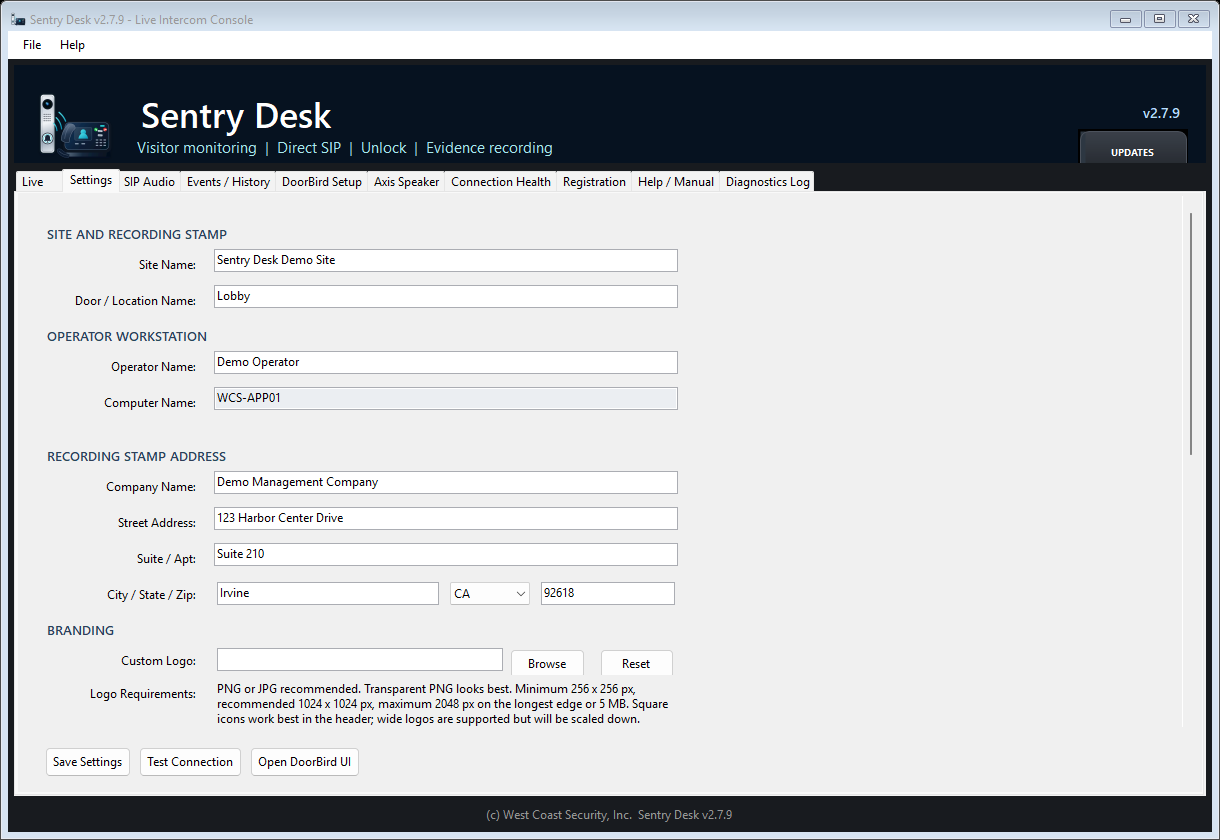
Use Settings for site identity, operator name, recording stamp information, DoorBird connection details, local folders, and optional customer branding. The computer name is automatic and is used with Operator Name to identify who is on duty.
Use Find DoorBird beside the DoorBird IP/Host field to scan a selected local /24 network range, such as 10.1.10.1 through 10.1.10.254, a Windows-routed private VPN /24 range, or a custom start/end range. If the VPN hides the office route, enter the office DoorBird subnet manually. To scan one exact address, enter the same IP in both custom fields.
Use the View button beside password fields when verifying setup or correcting a typed password.
Custom logo requirements: PNG or JPG, minimum 256 x 256 px, recommended 1024 x 1024 px, maximum 2048 px on the longest edge and 5 MB. Transparent PNG looks best.
Sentry Desk stores license state, saved credentials, settings, update state, and logs under C:\ProgramData\WCS\Sentry Desk. Operator working files such as snapshots, recordings, Axis audio recordings, and support bundles stay under Documents\WCS\Sentry Desk.
SIP Audio and VPN
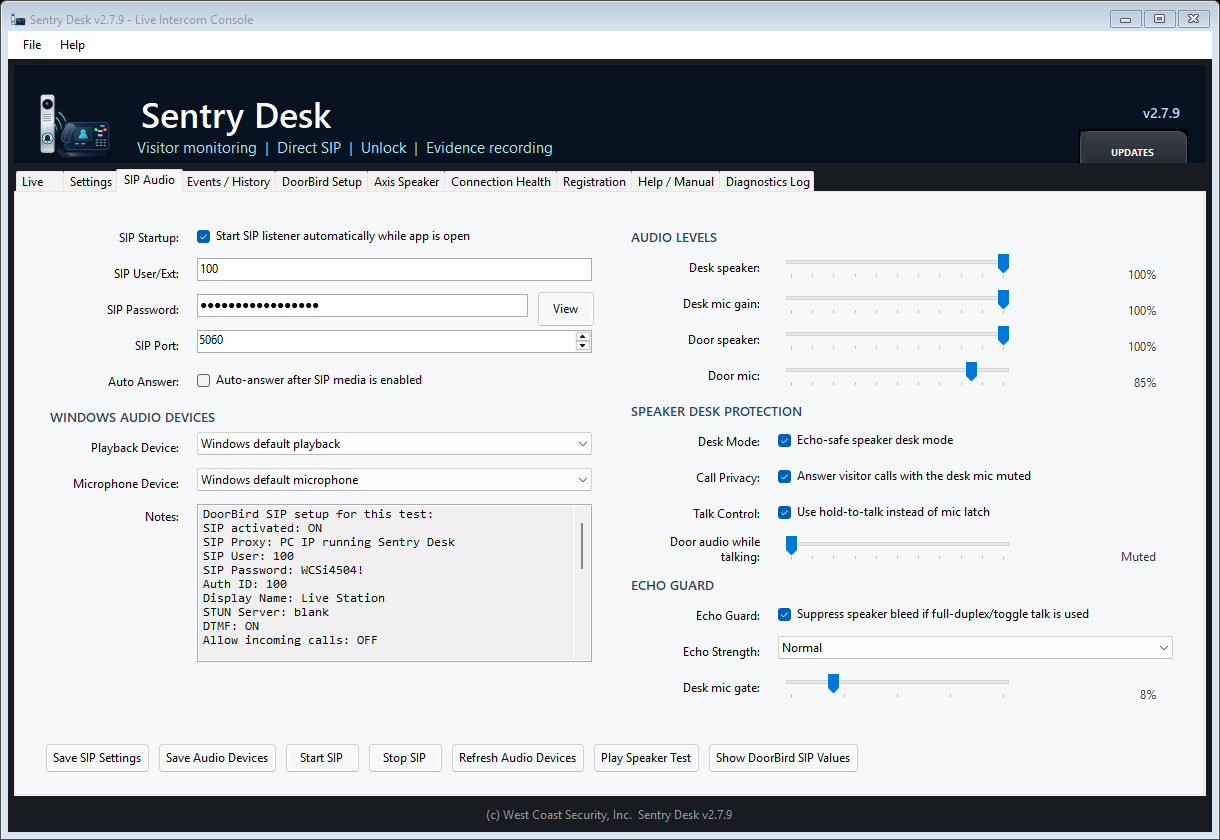
Sentry Desk listens for DoorBird SIP calls on UDP 5060 by default. Windows Firewall must allow UDP 5060 and RTP UDP 40000. For VPN use, connect the VPN first, find the DoorBird over the VPN route, then use DETECT THIS PC IP and PUSH SIP SETTINGS so DoorBird routes calls to the reachable workstation address.
Desk speaker controls the DoorBird audio heard on this PC, including SIP calls and Listen In. Desk mic gain adjusts audio sent from this PC to DoorBird during SIP calls only. Use Save Audio Devices after changing the Windows playback or microphone device. Echo-safe speaker desk mode is recommended when no headset is available: visitor calls answer with the desk mic muted, the operator holds TALK to speak, and door audio is ducked while the desk mic is open. Echo Guard is a secondary protection for full-duplex/toggle-talk use. Door speaker, Door mic, Ring Time Limit, and Call Time Limit are included when Sentry Desk pushes DoorBird SIP settings. Live Ring volume and Ring mute are local desk alert settings only.
For VPN deployments, the remote workstation must reach the DoorBird LAN API directly on port 80 or 443. Exacq or ONVIF working on the office LAN confirms the DoorBird is alive, but does not prove that the VPN route allows Sentry Desk API calls. If port 80 is blocked but 443 works, enter https://<doorbird-ip> in DoorBird IP/Host; non-streaming API commands will use HTTPS while DoorBird video/audio streaming remains HTTP as required by DoorBird's LAN API.
Events and History
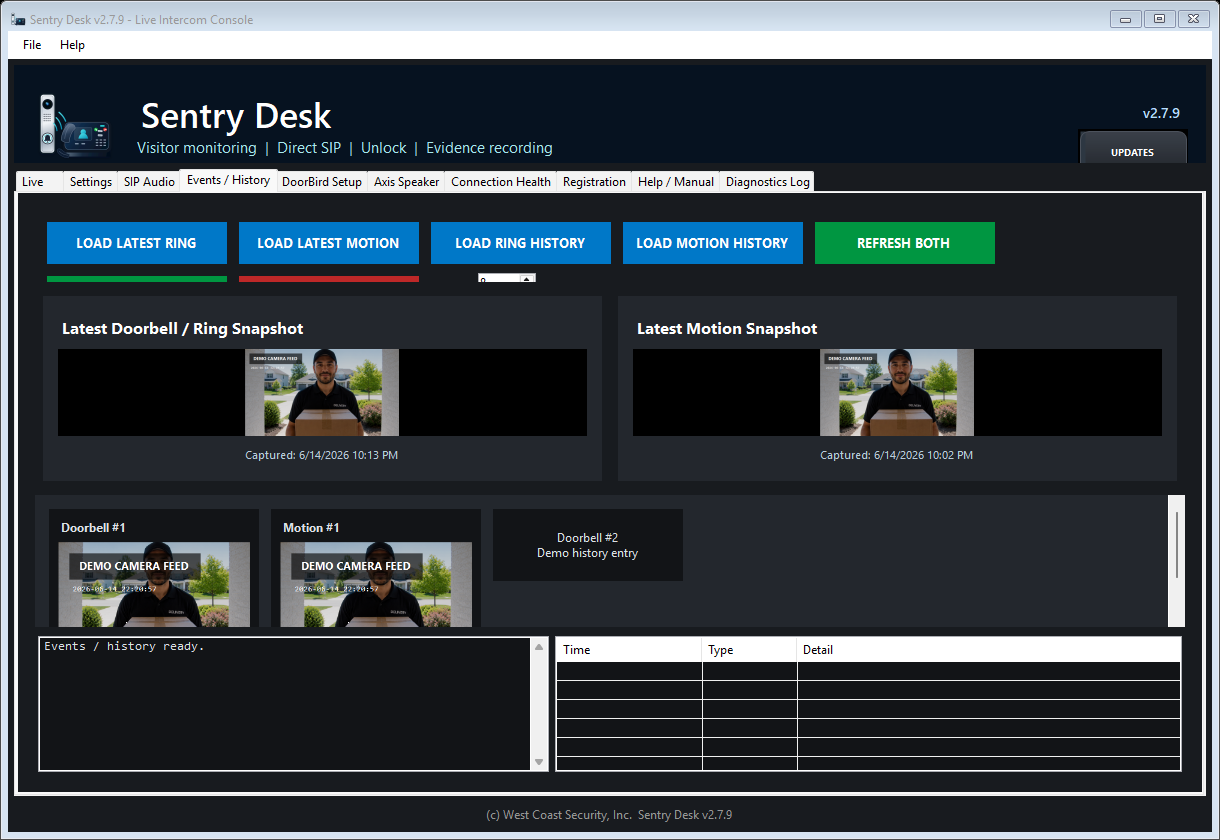
Events / History loads latest ring and motion images, fetches multi-image history sets, and can run DoorBird monitor.cgi for live doorbell and motion events. Loaded images show a date/time caption when Sentry Desk has a real embedded image timestamp or an observed Doorbell/Motion event time. DoorBird history.cgi does not provide a timestamp field, so unknown capture times are labeled as unavailable. Extended gallery and live monitor features are Site features.
DoorBird Setup
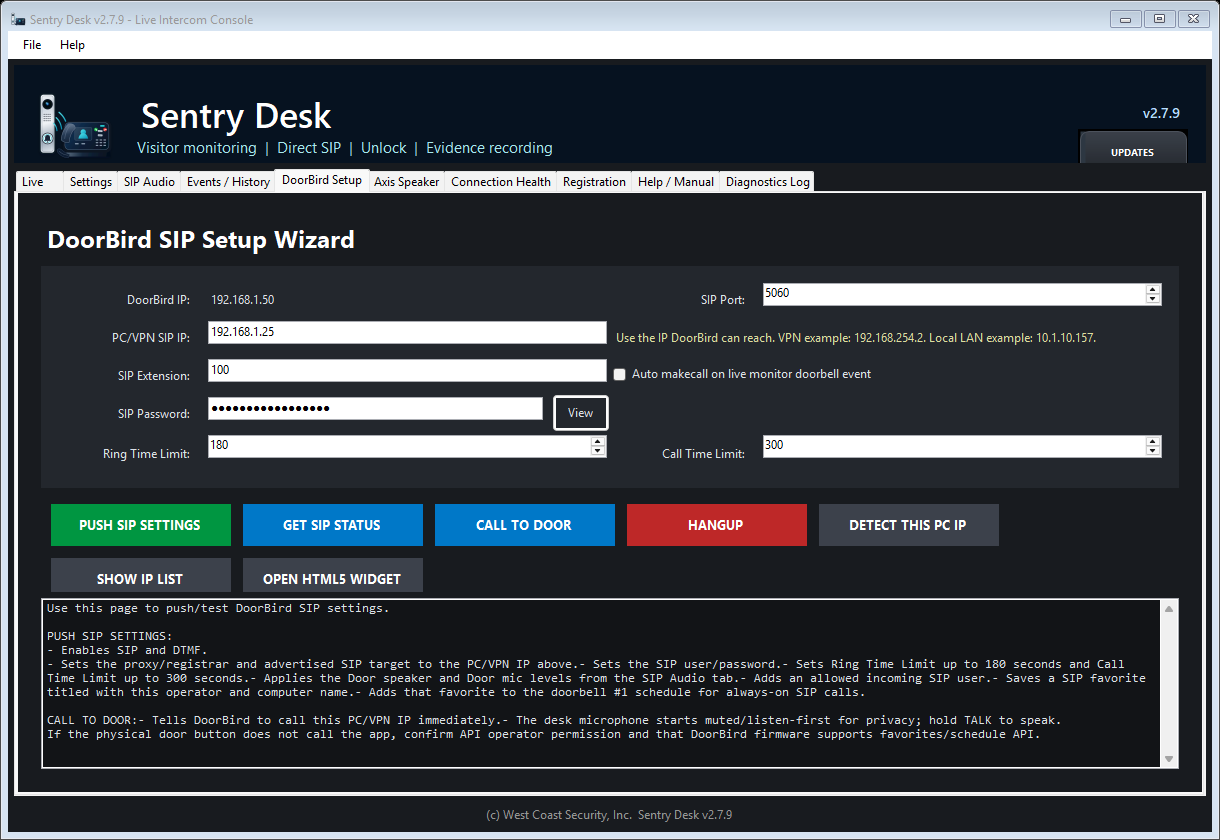
PUSH SIP SETTINGS enables SIP and DTMF, sets the direct SIP target, saves a Sentry Desk SIP favorite titled with Operator Name and the Windows computer name, and assigns that favorite to doorbell #1. Sentry Desk does not intentionally enable DoorBird LAN Only mode. Leave LAN Only off if the customer still wants DoorBird mobile-app, cloud, or cellular calling. Sentry Desk needs the DoorBird LAN API reachable from the workstation, but that is not the same as DoorBird's LAN Only setting.
Ring Time Limit is capped at DoorBird's 180-second maximum. Call Time Limit is capped at DoorBird's 300-second maximum. West Coast Security recommends 300 seconds for the call limit in case a visitor needs more time.
DoorBird supports one active SIP target at a time. When several computers run Sentry Desk, the active Site workstation should click ON DUTY at shift start. Other stations will show OFF DUTY after they detect that DoorBird routes calls to the new workstation.
The Live screen also shows the active DoorBird forwarding owner as a sanity check, for example Forwarding: this PC, Maria B. Longname @ LIVE-STATION-01, and 100@10.1.10.163:5060 on stacked lines when v2.6.12 or newer stations push the settings. Long names include the full value as a tooltip.
DoorBird Phone App: Required User Permissions
- Open the DoorBird app and tap the gear icon for setup.
- Tap Administration.
- Tap the administrator account listed directly under the Continue button.
- On the next page, under the User title, tap Settings.
- Select the DoorBird user that Sentry Desk will use.
- Tap Permissions.
- Check Watch Always, History, Motion, Geofencing, and API Operator.
- Tap Back, then Save.
- After the app returns to the user list, tap Back to return to Administration.
Manual DoorBird SIP Setup: Fallback / Verification
Sentry Desk can push these values from the DoorBird Setup tab. Use the phone-app path below only when manually checking or recovering a DoorBird configuration.
- From Administration, tap SIP Numbers, tap Add, enter
100@<station-ip>:5060, then tap Save. - Return to Administration, scroll to SIP Settings, and turn SIP activated on.
- Set SIP Proxy to
100@<station-ip>:5060. - Set User to
100and enter the SIP password that Sentry Desk will use. - Turn DTMF on.
- Turn Allow incoming calls on.
- Set Allowed SIP callers to
1, then confirm it shows100@<station-ip>:5060. - Turn Noise cancellation on.
- Set Ring Time Limit as desired, up to
180seconds. - Set Call Time Limit as desired, up to
300seconds. West Coast Security recommends300seconds so longer visitor conversations are not cut off. - Save the SIP settings.
Axis Speaker
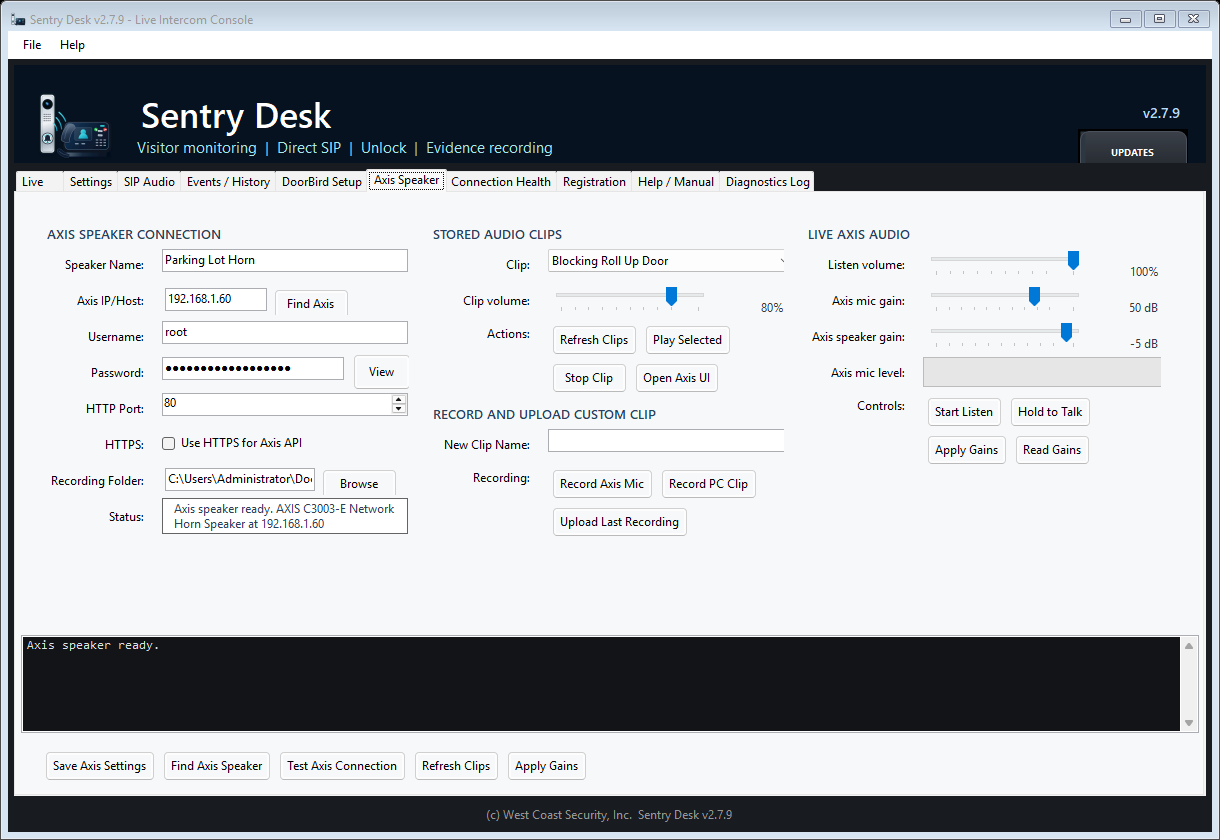
Axis Speaker is a separate enterprise audio module and does not use, stop, or restart DoorBird SIP/video communication.
- Find Axis Speaker scans a local or VPN range for Axis devices.
- Test Axis Connection confirms the Axis API login and audio capabilities.
- Refresh Clips loads stored Axis media clips into the dropdown.
- Play Selected plays the chosen stored clip through the Axis loudspeaker using the clip-volume slider.
- Play Sequence lets you build an ordered list of stored Axis clips, then plays them in that order. Sentry Desk waits for the detected clip length before advancing, then uses the selected pause between clips.
- From Live, the Axis Loudspeaker section provides quick daily actions for Axis mic listen, push-to-talk output, stored clip playback, speaker level, and mic level without leaving the live view.
- Start Listen monitors the Axis speaker microphone through the selected Windows playback device.
- Hold to Talk on Axis Speaker and PUSH TO TALK on Live send this PC microphone to the Axis loudspeaker only while the operator is pressing the button. Use it only where site policy allows live public-address audio.
- Record Axis Mic saves the Axis speaker microphone to a separate local WAV file under
Documents\WCS\Sentry Desk\Recordings\AxisAudiounless another folder is selected. - Record PC Clip records a local announcement from the selected Windows microphone. Upload Last Recording saves that clip into the Axis speaker clip library when the Axis account has permission.
- Axis mic gain maps to
AudioSource.A0.InputGain; Axis speaker gain maps toAudioSource.A0.OutputGainin the Axis device settings page.
Connection Health and Support
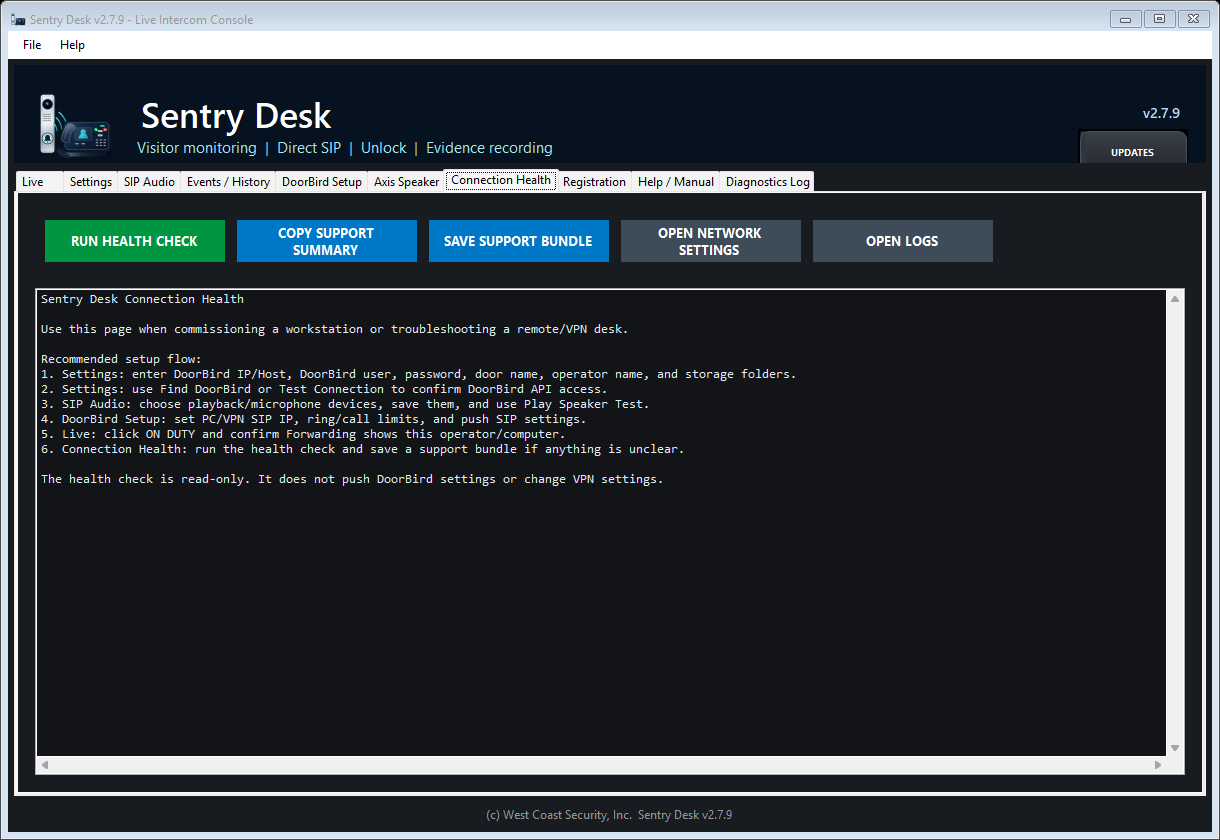
Use Connection Health when commissioning a workstation, troubleshooting VPN reachability, or collecting support details. Run Health Check creates a read-only summary of DoorBird API access, local and routed/VPN IP information, SIP listener status, RTP/audio counters, selected audio devices, and the current DoorBird forwarding target.
Save Support Bundle writes a ZIP under Logs\SupportBundles with a sanitized support summary, route print, ipconfig, audio-device list, diagnostics log, and local event history. The bundle intentionally does not include saved settings, passwords, or license keys.
Help, Logs, Recording, and VLC Playback
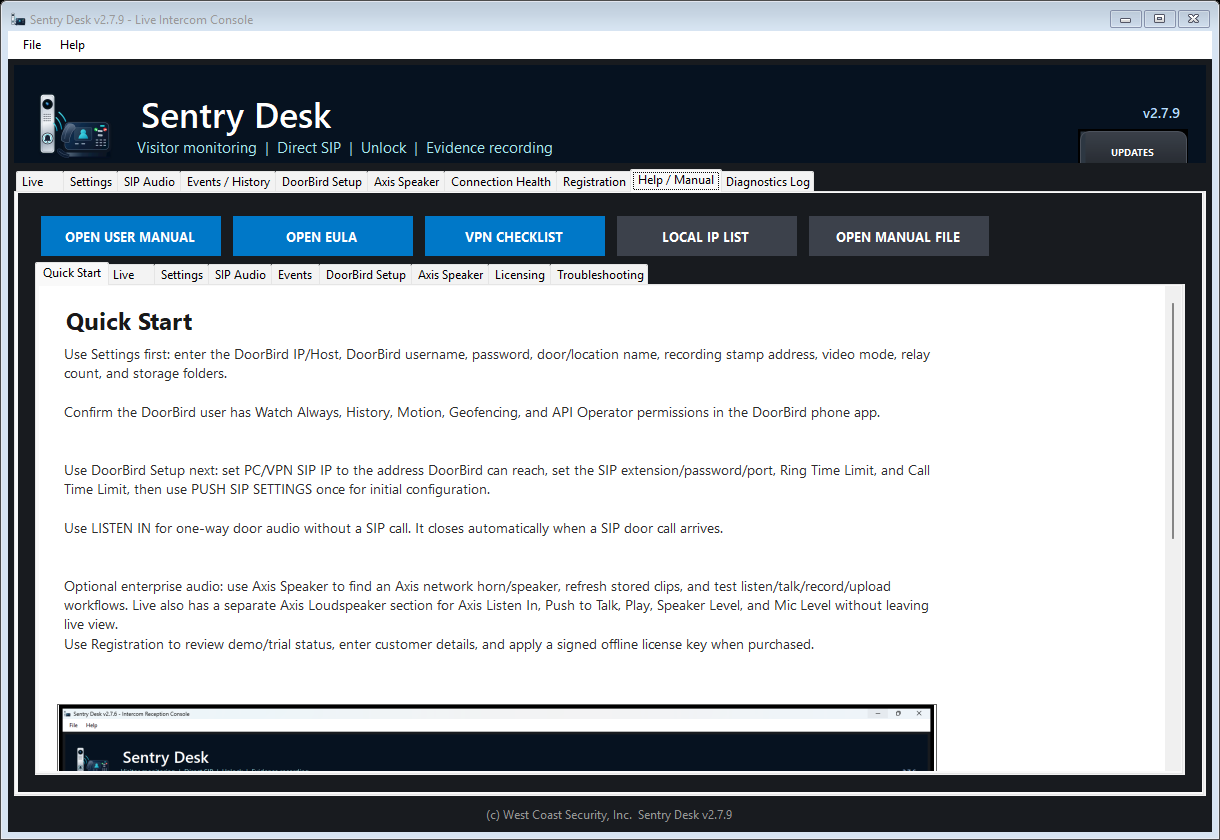
High Quality recording is recommended for normal use and records DoorBird's native widescreen stream for VLC playback. Stamped Evidence burns visible date/time and site details into the video. The VIDEOS button can play the latest recording directly in Sentry Desk's bundled VLC, so playback does not depend on Windows Media Player.
Privacy, Consent, and Legal Notes
Sentry Desk can display live video, receive one-way monitor audio, transmit and receive SIP audio, play Axis speaker clips, monitor or record Axis speaker microphone audio, trigger relays, save snapshots, and record video. Use clear site policies, appropriate notices, secure accounts, and controlled access to recordings and logs. Audio/intercom recording rules vary by location, and some jurisdictions require consent before recording.
Recommended deployment practices include visible video/audio notices where required, avoiding private or sensitive areas, using least-privilege DoorBird and Axis accounts, securing SIP/VPN credentials, and defining retention and deletion policies for recordings, Axis audio files, and logs.
Sentry Desk is not an emergency-service, 911, fire, life-safety, or guaranteed security system.
Troubleshooting
If CALL TO DOOR does nothing, confirm SIP is running, the DoorBird is reachable over LAN or WAN/VPN, Windows Firewall allows UDP 5060 and 40000, and the DoorBird user has API Operator permission.
If SIP START reports that UDP 5060 is already in use, close or stop the listed local application. Closing a browser tab for a local utility does not always stop its background web server.
If LISTEN IN returns no audio or a permission message, confirm the DoorBird user has Watch Always permission. DoorBird or the official DoorBird app can interrupt the LAN audio stream.
If VPN behavior is unclear, open Connection Health. Some VPN clients hide routes from Windows route output, so a successful DoorBird API probe and a working SIP/RTP call path are the real confirmation.
If DoorBird returns ServiceUnavailable after a previous call, DoorBird is usually still releasing its one SIP call slot. Sentry Desk retries SIP BYE cleanup first, starts a SIP Recovery watchdog, softly rearms the local listener, checks DoorBird SIP status, waits through a short release cooldown, and retries once.
If a signed key is rejected, confirm ProductId SentryDesk, Machine ID, edition, expiration, and signature details with WCS support.